 senn-tech
From VMware to Proxmox: Why We Switched Hypervisors
After Broadcom's acquisition of VMware, many operators faced the same question as us: accept ever-increasing licensing costs and bundled packages — or take virtualization into our own hands? We chose Proxmox VE. Here are the reasons, the concrete migration path, and the pitfalls.
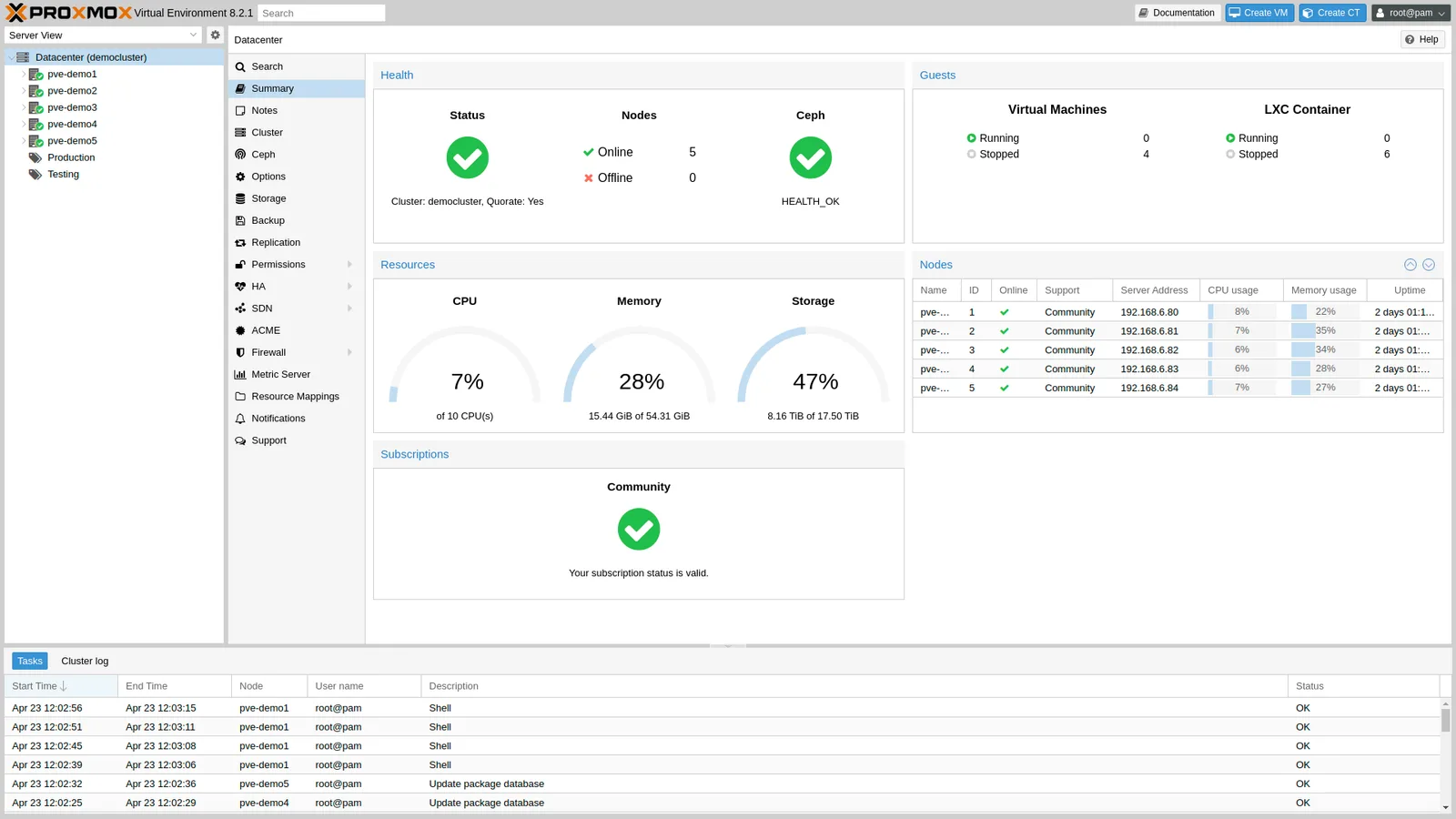
Why Proxmox
Proxmox VE is a complete server virtualization platform based on KVM and LXC, with clustering and high availability out of the box — Open Source, without licensing traps.
- Cost structure: Support subscription instead of core-based licensing. No surcharge per socket, per core, or per vCPU.
- Data sovereignty: runs on your own hardware, no vendor lock-in.
- Flexibility: KVM VMs and LXC containers side by side, ZFS, integrated replication, and an open storage model.
- Usability: Web UI, REST API, and CLI (
qm,pct) work together — automation without additional licensing products.
Two Migration Paths
There are two practical paths — the choice depends on whether the source VMs may run during migration and how many there are.
- Native ESXi Import (since Proxmox VE 8.2). Proxmox binds the ESXi host as storage and reads the VMDKs directly. Ideal for manageable inventories.
- Restore via Veeam Backup & Replication. Current Veeam versions can restore VMware backups directly to Proxmox VE — practical if Veeam is already in use or a clean backup restore is desired as the migration path.
For very large, complex vSphere environments, the native importer still hits limits — then a staged approach or the backup route makes sense.
The Native ESXi Import — Step by Step
- Inventory — VMs, dependencies, network VLANs, storage needs. First inventory, then migrate.
- Bind ESXi as Storage — under Datacenter → Storage → Add → ESXi, with host and credentials (skip certificate check if needed). Proxmox then lists the VMs with their disks.
- Import Wizard — choose target storage and disk format (
raw/qcow2), set controller to VirtIO SCSI single, and network model to VirtIO (paravirtualized). - Test migration of individual non-critical VMs. Shut down the source VM beforehand for a consistent state.
- Cutover during maintenance windows, with rollback path — the VMware VM remains untouched until sign-off.
After import, QEMU Guest Agent should be installed and discard (TRIM) as well as iothread enabled on the disk.
Windows VMs: the Most Common Pitfall
Linux guests usually come with VirtIO drivers in the kernel. Windows does not — and that’s exactly where most migrations fail with an “Inaccessible Boot Device” bluescreen. The reason: The VM suddenly boots from a VirtIO-SCSI controller for which Windows hasn’t loaded a driver yet.
The sequence that reliably works:
- Still under VMware: Install VirtIO drivers (
virtio-winISO) and uninstall VMware Tools. - During import, initially leave the boot disk on a SATA controller, load the VirtIO drivers safely in Windows, then switch to VirtIO SCSI single — the controller with the least overhead and highest throughput under Proxmox.
- Watch firmware: BIOS vs. UEFI/OVMF must match the source VM, otherwise the screen stays black.
Network and Cutover
Take over the MAC address of the VMware VM so DHCP reservations and firewall rules continue to work. Cleanly map VLAN tags on the Proxmox bridge interface. Only after successful functional testing should the old VM be shut down permanently.
What We Learned
The hypervisor switch was the easy part. The real work began with storage — from Ceph via Vitastor to DRBD. And a viable backup strategy according to 3-2-1 belongs from day one, not afterward.
Those migrating away from VMware regain control — but pay with a learning curve in storage and HA design. For us, the trade-off was worth it.
Further Reading
What changes on cost compared to VMware licensing?+
Proxmox VE is open source; instead of core-based licensing there's an optional support subscription. No surcharge per socket, per core, or per vCPU, and no vendor lock-in. But the article is honest: you pay for the switch with a learning curve in storage and HA design — the hypervisor swap itself was the easy part.
Can we migrate existing VMs without rebuilding everything?+
Yes, there are two practical paths. Since Proxmox VE 8.2, the native ESXi import binds the host as storage and reads the VMDKs directly — ideal for manageable inventories. Alternatively, current Veeam versions restore VMware backups straight to Proxmox. For very large vSphere environments the native importer hits limits; then a staged approach helps.
Why do Windows VMs show a bluescreen after import?+
Because Windows — unlike Linux — has no VirtIO driver in the kernel and is suddenly asked to boot from a VirtIO-SCSI controller: "Inaccessible Boot Device." The reliable sequence: while still under VMware, install virtio-win and uninstall VMware Tools; leave the boot disk on SATA first, load the drivers, then switch to VirtIO SCSI single. Firmware (BIOS vs. UEFI/OVMF) must match.